
Features
- Quick & easy
- 100+ ready-to-use styles!
- Fully responsive
- CTA button (Change scene / Open URL)
- No technical knowledge is required
- Independent of skin
High variety, Quick, Simple
The 3DVista info windows do not offer many customization options for all tastes, such as custom styles, buttons, etc. So, some users create their skin components to solve it, but this creates a variety of new problems, including difficulty managing and finding them, changing all components at once, optimizing display on devices of different sizes, requiring technical expertise, and being time-consuming.
But now! by using this plugin, you just need to fill out the title, description, and media you want in the info window, then pick one of the dozens of styles, As simple as that.


how to use
After installing this plugin, you can easily customize the info windows of the 3DVista. All you need to do is pick a style from among dozens and put the style code in the info window header.
Example
Original styles
Customized styles
FAQ
Can this plugin be used in multiple projects?
This plugin can be purchased once for each 3DVista account and used for as many projects as you like, but you should register the domain name for online projects by this link.
Does this plugin require paying for future updates?
No, you pay once and all updates will be free
Can this plugin be used for pop-ups created in 3DVista skin?
No, these 3dvista custom pop-ups can be used only in info-window action, if you want to use this plugin for skin please get in touch with us.
You can purchase the plugin on the 3dvista marketplace
Technical tips
How to set size (width and height) for info window?
We set default dimensions for all styles, which replace the default dimensions of 3DVista (400*600), usually the height depends on the content and screen size, but you can change the width, of course, for a better look, some styles have fixed dimensions.
* Height size will be set only for top bar styles and bottom bar Styles
how to change media size and scale?
Media size depends on the information window size, but you can change the scale mode in 3DVista to display the photo or video completely or cropped.
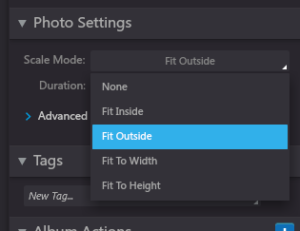
To use this option in 3DVista and get better quality, we recommend using photo album instant photo.
How to deactivate Veil
As mentioned in the how-to-use video, the Veil option must be active, but if for some reason you need to interact with the elements behind the info window, you can put the”-noVeil” code at the end of the style name (before the }} ) as you can see in the picture.
Sample:
{{style:overlap-horizontal-fullyrounded-light-noVeil}}

How to customize the text
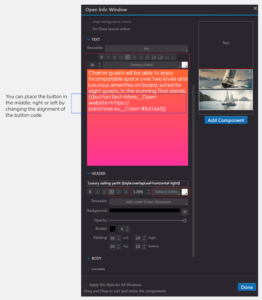
Currently, the options highlighted in the image are supported by the plugin, allowing you to
customize the appearance of styles to better suit your preferences. Please note that we modify
the default colors and font sizes of 3DVista to our defaults unless you change them. For exam
ple, in dark styles, we change the black text color to white. Therefore, if you use pure black,
our color will still replace it.
How to customize the colors
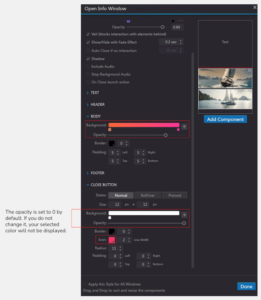
Based on the style structure, you can customize the body color of the info window and the
close button using the options highlighted in the image.
Please note that using gradients or opacity in some styles may not produce a desirable
appearance. Additionally, there is no need to configure hover states or other settings for the
close button. Simply select the background color and the color of the “X,” and we will handle
the rest.
Do you have a specific idea in mind?
Let’s team up to bring your idea to life through collaborative design and development